
If you have followed my instructions to set up an automatic e-mail newsletter for your Etsy shop, you will want to start tagging the links in the e-mails so you can track the traffic you get from them. Here's how:
From your Feedburner account, click on the feed for your Etsy shop e-mail.
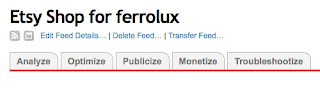
Click the Analyze tab. This will show you some basic stats for your feed.
In the menu on the right, click Configure Stats.
Check the box next to Item Link Clicks the box for tracking clicks in Google Analytics should also check automatically.
Save your settings.
Links to your items that appear in your e-mail will now be tagged with the medium Feedburner and the source email. You will see them appear under these terms in your traffic report. Your feed will also now appear as a separate campaign in your campaign report.
Showing posts with label Google. Show all posts
Showing posts with label Google. Show all posts
Monday, December 27, 2010
Friday, December 17, 2010
Create an Opt-In E-mail for your Etsy Shop
E-mail is an effective marketing tool, but using it has its pitfalls. Sending unsolicited promotional e-mail, even to customers you have e-mailed in the past, is considered spam. The accepted way to market by e-mail is to have an "opt-in" e-mail list where each subscriber gives explicit permission to receive your e-mails, and where they can easily unsubscribe if they wish.
Maintaining a list of subscribers by hand is time consuming, but there are free tools that not only automatically create e-mails using your Etsy shop listings, but manage sign-up and mailing for you. This post will show you how to use your Etsy RSS feed and the online service Feedburner to create an opt-in e-mail list that notifies subscribers automatically when you list new items, and how to promote it to your Etsy customers when they make a purchase.
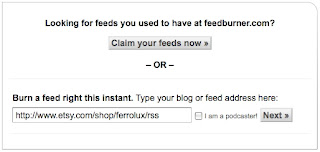
1. The first piece of information you need is the address of the RSS feed for your Etsy shop. This is made up of your full Etsy shop address plus /rss. For example, the address for my shop is:
http://www.etsy.com/shop/ferrolux/rss
2. The next thing you need is an account with Feedburner. This is a service of Google, so if you already have a Google account, you can log in with that. Go to Feedburner and sign up for an account or sign in with your Google account.
3. After signing in, you will see a window asking for the address of the feed you would like to burn. Enter your RSS feed address in the box and press Next.
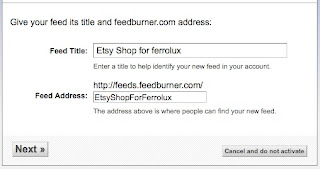
4. The next box will prompt you to give your feed a title. You can leave this as it is or change it if you like. Press Next.
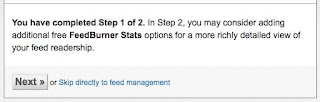
5. The next box will ask if you want to add various features to your feed. You can skip these for now. Click the link that reads "Skip directly to feed management."
6. There are several services offered by Feedburner which you can explore on your own. The one we need for this service is found under the Publicize tab at the top of the page. Click it.
7. In the menu on the left, click the E-Mail Subscriptions link.
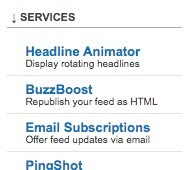
8. The next window will ask you to activate the service. Click the Activate button.
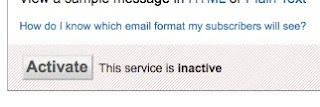
9. There are options in the next box to create a sign-up widget for your blog, which you may want to do later. For our present project, we need to scroll down and find the window that has the code for a Subscription link.
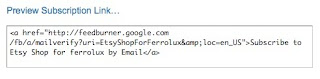
The important part of this code is the link itself. It is the portion between the quotation marks that starts http://... Copy the whole link (without the quotation marks).
10. You can use this link as it is and skip ahead to Step 13, but if you'd like to shorten it, continue on to the next step.
11. There are many services online that will take long web addresses and shorten them to make them easier to insert in webpages and updates. One popular service is called bit.ly. To shorten your subscription link using bit.ly, go to bit.ly
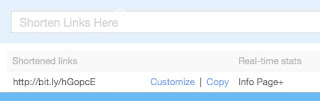
12. Paste your subscription link into the box and click the Shorten button. Bit.ly will create a short URL that points to your subscription link. To copy it, click the Copy button. (If you have a bit.ly account, you might click the Customize button and change your short URL to something prettier, like your shop name.)
13. To publicize your new subscription link, you can put it in the e-mail message that is automatically included when a customer makes a purchase from your shop. To add it, go to Your Etsy and click the Info & Appearance link under Shop Settings.
14. Scroll down to find the message box. Paste your subscription link address as part of your message. For example:
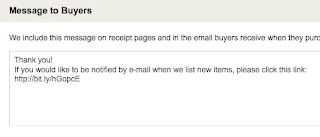
In most e-mail programs the link will be highlighted automatically, allowing your customers to click it and go directly to the Feedburner signup page.
Once they have signed up, they will receive an e-mail once a day if you have listed something new in the previous 24 hours. Your e-mails will be sent with the required unsubscribe link so they can easily opt-out if they wish.
Explore the options in your Feedburner account to customize your e-mail with your own subject heading if you like. You can also set the time of day your e-mail goes out. You can use the widgets and the link code in your blog or website, as well.
Maintaining a list of subscribers by hand is time consuming, but there are free tools that not only automatically create e-mails using your Etsy shop listings, but manage sign-up and mailing for you. This post will show you how to use your Etsy RSS feed and the online service Feedburner to create an opt-in e-mail list that notifies subscribers automatically when you list new items, and how to promote it to your Etsy customers when they make a purchase.
1. The first piece of information you need is the address of the RSS feed for your Etsy shop. This is made up of your full Etsy shop address plus /rss. For example, the address for my shop is:
http://www.etsy.com/shop/ferrolux/rss
2. The next thing you need is an account with Feedburner. This is a service of Google, so if you already have a Google account, you can log in with that. Go to Feedburner and sign up for an account or sign in with your Google account.
3. After signing in, you will see a window asking for the address of the feed you would like to burn. Enter your RSS feed address in the box and press Next.

4. The next box will prompt you to give your feed a title. You can leave this as it is or change it if you like. Press Next.

5. The next box will ask if you want to add various features to your feed. You can skip these for now. Click the link that reads "Skip directly to feed management."

6. There are several services offered by Feedburner which you can explore on your own. The one we need for this service is found under the Publicize tab at the top of the page. Click it.

7. In the menu on the left, click the E-Mail Subscriptions link.

8. The next window will ask you to activate the service. Click the Activate button.

9. There are options in the next box to create a sign-up widget for your blog, which you may want to do later. For our present project, we need to scroll down and find the window that has the code for a Subscription link.

The important part of this code is the link itself. It is the portion between the quotation marks that starts http://... Copy the whole link (without the quotation marks).
10. You can use this link as it is and skip ahead to Step 13, but if you'd like to shorten it, continue on to the next step.
11. There are many services online that will take long web addresses and shorten them to make them easier to insert in webpages and updates. One popular service is called bit.ly. To shorten your subscription link using bit.ly, go to bit.ly
12. Paste your subscription link into the box and click the Shorten button. Bit.ly will create a short URL that points to your subscription link. To copy it, click the Copy button. (If you have a bit.ly account, you might click the Customize button and change your short URL to something prettier, like your shop name.)

13. To publicize your new subscription link, you can put it in the e-mail message that is automatically included when a customer makes a purchase from your shop. To add it, go to Your Etsy and click the Info & Appearance link under Shop Settings.
14. Scroll down to find the message box. Paste your subscription link address as part of your message. For example:

In most e-mail programs the link will be highlighted automatically, allowing your customers to click it and go directly to the Feedburner signup page.
Once they have signed up, they will receive an e-mail once a day if you have listed something new in the previous 24 hours. Your e-mails will be sent with the required unsubscribe link so they can easily opt-out if they wish.
Explore the options in your Feedburner account to customize your e-mail with your own subject heading if you like. You can also set the time of day your e-mail goes out. You can use the widgets and the link code in your blog or website, as well.
Sunday, November 22, 2009
New Guide to Etsy Analytics
I have been consolidating and updating the various blog posts I've made over the years about Google Analytics for your Etsy shop, and have placed them all in one guide, which I have decided to offer for sale on Etsy. I'll continue to help out where I can and offer GA tips here on the blog.
I wanted to put everything together in one easily updated collection so people could have a full reference. As Google and Etsy change their own features, no doubt the GA techniques will change, and I'll be able to update everyone at once when these changes are made.
Unofficial Guide to Etsy Analytics


I wanted to put everything together in one easily updated collection so people could have a full reference. As Google and Etsy change their own features, no doubt the GA techniques will change, and I'll be able to update everyone at once when these changes are made.
Unofficial Guide to Etsy Analytics
Thursday, November 12, 2009
Etsy Starts Product Feed Testing
This week Etsy will begin beta testing its product feed to Google's Product Search database. At the beginning of September, Google announced it would no longer accept feeds from individual sellers who maintained shops on venue sites like Etsy and would require such sites to submit products on behalf of their users if they wanted their items in Google's database of products.
Etsy has been working with Google and will be one of three pilot venue sites that have worked with Google to ensure the quality of the data feed and that the sites will be able to field questions from their users - part of the new Google policies is that the site will now offer support to its users on Google Product Search questions, not Google directly.
Since Google is making this move, it says, to prevent duplicate listings of the same item, there are still questions about whether sellers who have products being fed from more than one venue site will have their items considered duplicates. Early indications seem to suggest that if the titles and descriptions are identical, Google may flag them as duplicates and remove them.
As a result, Etsy is recommending that sellers choose just one site for handling their feed. One major advantage Etsy's feed will have over other similar sites is that it will retain the individual shop's name with each item listed in Google, not replace it with the venue site's name.
Etsy has been working with Google and will be one of three pilot venue sites that have worked with Google to ensure the quality of the data feed and that the sites will be able to field questions from their users - part of the new Google policies is that the site will now offer support to its users on Google Product Search questions, not Google directly.
Since Google is making this move, it says, to prevent duplicate listings of the same item, there are still questions about whether sellers who have products being fed from more than one venue site will have their items considered duplicates. Early indications seem to suggest that if the titles and descriptions are identical, Google may flag them as duplicates and remove them.
As a result, Etsy is recommending that sellers choose just one site for handling their feed. One major advantage Etsy's feed will have over other similar sites is that it will retain the individual shop's name with each item listed in Google, not replace it with the venue site's name.
Thursday, October 22, 2009
Tracking your traffic from Google Base
Google now requires venue sites like 1KM and Etsy to submit all their merchants' product feeds to Google product listings together rather than allowing individual merchants to submit their own directly. As a result, merchants have lost the ability to track their visits from the Google product search by logging in to their Google Merchant Center account.
But it is still possible to track the incoming traffic from these links using Google Analytics. Here's how:Google Analytics lets you filter incoming traffic based on the referring source and "re-write" it so it shows up separately in your reports. By default, your Google Products traffic will be lumped in with your organic Google Search traffic. But, where Google searches come in from google.com, Google product searches come from google.com/products. You can filter all the traffic that comes from google.com/products, extract it from your regular Google search traffic, and output it to its own line in your Traffic Sources reports.
First, find the profile for the shop you want to apply the filter to and click the Edit link on the right side of the table.
Find the Filter box (the third one from the top) and click the + Add Filter link at the right.

At the top of the page, select Add new Filter for Profile
In the box called Enter Filter Information refer to the screenshot below:

Filter Name Give the filter a name that will let you recognize what it does, like Google Products
Filter Type Select Custom filter and the rest of the information fields will be displayed. Select Advanced
Field A -> Extract A From the dropdown menu, select Referral and in the text box, type in google\.com/products (note the backslash before the dot in the address. This is important)
Field B -> Extract B From the dropdown menu select Campaign Medium and in the text box enter organic
Output To -> Constructor From the dropdown menu select Campaign Source and in the text box enter google products (or any other source name that will allow you to recognize the traffic source)
Field A Required Yes
Field B Required Yes
Override Output Field Yes
Case Sensitive NoSave changes
To see your traffic from the Google product search, look in your Traffic Sources report in Google Analytics - it will now show up as google products / organic for the medium and source:

You can click on this line to see the keywords people have used to find your items in the Google Product search.
Note: you can use this filter on all your venue sites. Follow the first few steps of these instructions to get to the Filter page of the site you want to track, but instead of selecting Apply a new filter select Apply an existing filter. A list of your filters will be displayed under the names you gave them. You can select your filter from the list and add it to your shop profile.
Friday, September 4, 2009
Google Shutting Down Shop Feeds
Many handmade sellers are receiving the following e-mail today:
What does this mean? According to Google's blog, it means that sites like Etsy, 1000 Markets, and others that do not currently submit product feeds for their individual sellers will have to start doing so if they want their items to continue being searchable in the Google Product Search.
At this early date there are still many questions sellers have. Will these sites be taking over product submission for us? Will we still have access to statistics?
The deadline for the new policy is December 1, 2009. Most individual shop feeds are still live at this point, but Google says it will start shutting them down beginning today.
Hello,
We're happy to let you know that as of September 3rd, individual sellers on marketplaces no longer need to submit feeds to Google Product Search. Going forward, marketplaces will be responsible for submitting a feed of all their sellers' items, so we will be retiring your account to avoid duplicate entries on Product Search. Your marketplace will also be responsible for ensuring that your feeds are up-to-date and compliant with our policies.
In most cases, marketplaces already submit feeds of their sellers' items. If you have any further questions about your items or Google Product Search, please contact your marketplace. We look forward to continuing to display your products, and hope you enjoy the new streamlined submission process.
Sincerely,
The Google Team
What does this mean? According to Google's blog, it means that sites like Etsy, 1000 Markets, and others that do not currently submit product feeds for their individual sellers will have to start doing so if they want their items to continue being searchable in the Google Product Search.
At this early date there are still many questions sellers have. Will these sites be taking over product submission for us? Will we still have access to statistics?
The deadline for the new policy is December 1, 2009. Most individual shop feeds are still live at this point, but Google says it will start shutting them down beginning today.
Subscribe to:
Posts (Atom)